
Alight Motion PC: Editing Videos on Your Computer
Alight Motion PC allows users to enjoy advanced video editing and motion graphics on a larger screen. While Alight Motion was originally designed for mobile devices, many creators prefer using it on a PC for better control, smoother performance, and a more comfortable editing experience.
Whether you create content for YouTube, TikTok, Instagram, or personal projects, Alight Motion on PC makes it easier to work with animations, visual effects, transitions, and layered editing tools. With the help of an Android emulator, you can access all the powerful features of Alight Motion directly on your computer and create professional-quality videos with greater convenience.
What Is Alight Motion PC
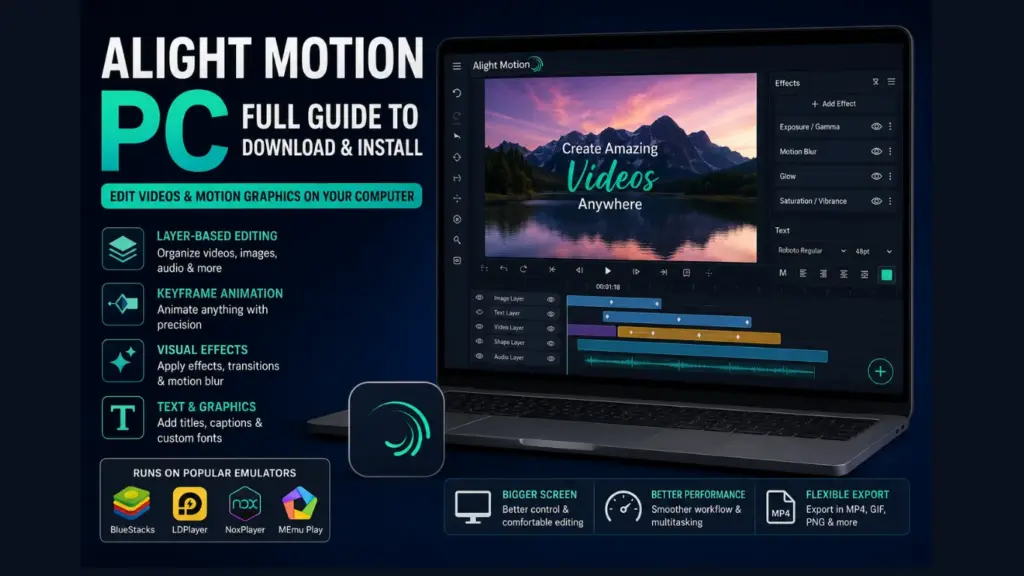
Alight Motion for PC refers to using the Alight Motion app on a Windows or Mac computer through an Android emulator. Since there is no official desktop version of Alight Motion, users install an emulator such as BlueStacks, LDPlayer, or NoxPlayer to run the Android application on their PC. This setup allows creators to access keyframe animation, visual effects, motion graphics, color correction, multiple layers, and other editing tools on a larger display.
Using Alight Motion on a PC offers several advantages, including better multitasking, improved precision while editing, and the ability to work on complex projects more comfortably. It is a popular option for video editors and content creators who want the features of Alight Motion while benefiting from the performance and screen size of a desktop or laptop computer.
Key Features of Alight Motion PC
Whether you use it on mobile or through an emulator, Alight Motion comes packed with tools that rival some professional editing software. Here’s what makes it stand out:
Layer-based editing
Stack videos, images, shapes, and audio clips, then organize everything using groups.
Vector and bitmap tools
Draw shapes directly inside the app or bring in your own images and clips.
Keyframe animation
Animate almost any setting, from position to color, frame by frame.
Custom easing and timing
Use ready-made presets or build your own motion curves.
Large effects library
Combine building-block effects to create your own visual style.
Motion blur
Adds natural blur based on how fast an object moves, which makes animations look smoother.
Text and font support
Add captions or titles with custom fonts, shadows, and strokes.
Flexible exporting
Save your work as MP4 video, GIF, PNG sequences, or still images.
Project sharing
Package your project file and send it to teammates or another device.
Free vs Premium
- Alight Motion is free to use, but exported videos carry a watermark unless you subscribe to a paid membership, which also unlocks extra effects and premium assets.
System Requirements for Alight Motion app PC
Since Alight Motion apk for PC actually runs through an emulator, your computer needs to meet the emulator’s requirements, not the app’s. Most emulators like BlueStacks ask for the following:
| Requirement | Minimum | Recommended |
| Operating System | Windows 7 or macOS Sierra (64-bit) | Windows 10/11 |
| Processor | Intel or AMD, dual-core | Quad-core or better |
| RAM | 4 GB | 8 GB or more |
| Storage | 10 GB+ free space | 5 GB free space |
| Graphics | Basic integrated graphics | Dedicated GPU |
| Admin Access | Required | Required |
| Internet | Needed for setup and updates | Stable broadband |
If you plan to edit heavy 4K projects, more RAM and a stronger processor will save you a lot of frustration.
How to Download and Install Alight Motion on PC
Here’s a simple step-by-step process to get Alight Motion apk PC running:
How to Download and Install Alight Motion on PC
Here’s a simple step-by-step process to get Alight Motion apk PC running:
This method installs the official app from the Play Store, which is the safest option. If you’re looking for Alight Motion iOS, using the official mobile version or trusted installation methods is recommended instead of downloading APK files from random third-party websites. Unverified APK files can be modified and may contain malware, putting your device and data at risk.
Using BlueStacks to Run Alight Motion on PC
Why BlueStacks
BlueStacks is one of the most widely used Android emulators, and it’s a common choice for running Alight Motion PC because it’s beginner-friendly and doesn’t need a complicated setup.
Step-by-Step With BlueStacks
Other Emulator Options
If BlueStacks feels heavy for your computer, you can also try:
LDPlayer
Lightweight and works well on lower-spec machines.
NoxPlayer
Offers good customization for gaming and app use.
MEmu Play
Another solid alternative with decent performance.
Problems With Alight Motion on PC
Running a mobile-first app through an emulator isn’t always smooth. Here are common issues users run into with Alight Motion for PC:
Lag during complex edits.
Multi-layer projects with lots of effects can slow down, especially on lower-end PCs.
Longer export times.
Rendering a project through an emulator often takes longer than on a modern smartphone.
Touch-based controls.
The app was designed for touchscreens, so some gestures feel awkward with a mouse.
Emulator crashes
Some users report the emulator freezing during long editing sessions.
Storage and RAM usage
Emulators are resource-heavy, and running them alongside other programs can strain your system.
Occasional sync issues
Saving and loading projects between devices can sometimes be inconsistent.
Most of these problems improve significantly if your PC has enough RAM and a decent processor.
Pros vs Cons
- Bigger screen makes detailed editing easier
- Mouse and keyboard can speed up some tasks
- Access to the same features as mobile
- Free to use with watermark
- Good for reviewing and fine-tuning projects
- No official desktop version exists
- Requires installing extra emulator software
- Can lag on older or weaker computers
- Touch-based UI isn’t fully optimized for PC
- Exporting large projects takes longer
Alternatives to Alight Motion PC
If the emulator route feels like too much hassle, there are other video editing tools built specifically for desktop that offer similar creative control:
CapCut for PC:
Free, beginner-friendly, and has an actual desktop version.
DaVinci Resolve:
A powerful free option for more advanced color grading and editing.
Adobe After Effects:
Industry-standard for motion graphics, though it comes with a subscription cost.
Blender:
Free and open-source, great if you’re interested in more advanced animation and 3D work.
HitFilm Express:
A solid free choice for effects-heavy video editing on desktop.
These tools skip the emulator step entirely since they’re built natively for Windows or Mac.
Tips for a Smoother Editing Experience
- Close unused background programs before opening your emulator.
- Allocate more RAM and CPU cores to the emulator in its settings, if the option is available.
- Save your project frequently to avoid losing work if the emulator crashes.
- Work with shorter clips or lower resolutions first, then switch to full quality for the final export.
- Keep your emulator and graphics drivers updated.
Is Alight Motion PC Worth Using?
It really depends on your workflow. If you’re already comfortable editing on your phone and just want a bigger screen occasionally, running an Alight Motion application PC through an emulator can work fine for simple projects. But if you’re doing heavy, professional-level editing every day, a dedicated desktop editor might save you time and fewer headaches.
Conclusion
Alight Motion PC isn’t an official product, but thanks to Android emulators like BlueStacks, you can still enjoy the app’s layer-based editing, keyframe animation, and effects library on a bigger screen. It takes a bit of extra setup, and performance depends heavily on your computer’s specs, but for many creators, the larger workspace is worth it.
If emulators feel like too much hassle, native desktop editors like CapCut or DaVinci Resolve are worth considering. Either way, understanding how Alight Motion actually works helps you make the right choice for your editing needs.