
Alight Motion Presets: Free Downloads and Easy Installation
Alight Motion presets have become one of the most popular tools among video editors and content creators. They allow users to apply pre-designed effects, animations, transitions, and editing styles to their videos with just a few taps. Instead of creating complex edits from scratch, users can import a preset and instantly achieve a professional-looking result.
Whether you create content for TikTok, Instagram Reels, YouTube Shorts, or other social media platforms, Alight Motion free presets can save time and improve the quality of your edits. They are especially useful for beginners who want impressive effects without spending hours learning advanced editing techniques. With thousands of presets available online, users can easily find styles that match their creative vision and editing needs.
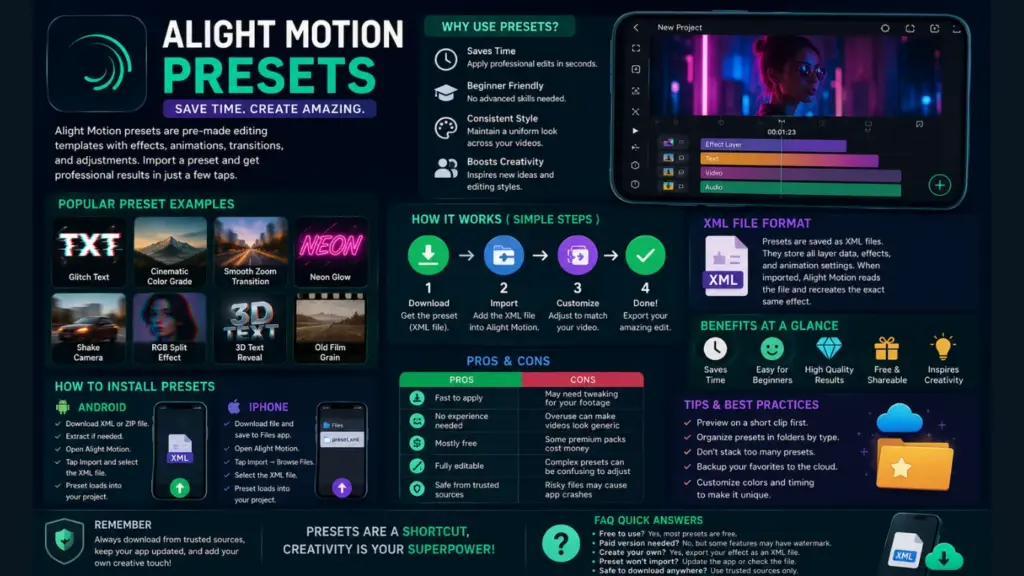
What Is an Alight Motion Preset
Alight Motion presets are pre-configured editing templates that contain effects, animations, transitions, motion settings, and visual adjustments created by other editors or designers. These presets can be imported into Alight Motion and applied to projects instantly, eliminating the need to manually recreate complex editing effects.
A preset may include elements such as smooth transitions, shake effects, velocity edits, text animations, color grading, and beat synchronization. Once imported, users can customize the preset to match their own video clips and preferences. This makes Alight Motion download presets an excellent solution for both beginners and experienced editors who want to create eye-catching videos quickly and efficiently.
Why Presets Matter for Beginners
New editors often struggle with keyframes, layer blending, and color grading. A good Alight Motion preset removes that learning curve. You get professional-looking results while you slowly learn how the app works behind the scenes.
Alight Motion XML File Format Explained
Every Alight Motion preset is saved as an XML file. XML stands for Extensible Markup Language, and it’s simply a text-based format that stores information in an organized way.
When someone creates a preset, the app saves all the layer data, effect values, and animation settings into this XML file. When you import that file back into Alight Motion, the app reads the XML and rebuilds the exact same effect on your project. If you also use Alight Motion PC, these preset files can help you maintain the same editing style and workflow across different devices.
Why XML Format Is Used
How to Download Alight Motion Presets
There are many places online where you can find free Alight Motion presets. Here are the safest ways to get them:
YouTube tutorials
Many creators share preset links in their video descriptions.
Preset-sharing websites
Several blogs and communities offer free XML files for download.
Telegram channels
Some editors post exclusive presets in Telegram groups.
Pinterest and Instagram
Creators often link their preset packs in bio links or pinned posts.
When downloading, always check that the file ends in .xml. Avoid random links that ask for personal information or app downloads outside official stores, since these can carry unwanted software. Once downloaded, the file usually lands in your phone’s Downloads folder, ready to be imported into Alight Motion.
8 Popular Alight Motion Preset Names
Here are some commonly used Alight Motion apk presets that beginners often search for:
Glitch Text Preset
Adds a flickering, distorted text animation, great for intros and hooks.
Cinematic Color Grade
Gives your footage a moody, film-like color tone in one tap.
Smooth Zoom Transition
Creates a seamless zoom effect between two clips.
Neon Glow Preset
Adds a bright glowing outline to text or shapes, popular in aesthetic edits.
Shake Camera Preset
Simulates a handheld camera shake for action-style videos.
RGB Split Effect
Splits colors slightly apart for a retro, glitchy look.
3D Text Reveal
Animates text with depth and rotation for eye-catching intros.
Old Film Grain Preset
Adds vintage grain and flicker for a nostalgic feel.
Each of these presets can be customized further once imported, so you’re never stuck with just the default look.
How to Install Alight Motion Presets on Android
Installing an Alight Motion preset on Android is simple once you know the steps:
Troubleshooting Android Installation
If the preset doesn’t appear, make sure you’re using the latest version of Alight Motion. Older versions sometimes can’t read newer XML files properly.
How to Install Alight Motion Presets on iPhone
The process on iPhone is very similar, but with a few small differences due to iOS file handling:
Troubleshooting iPhone Installation
Sometimes iOS blocks downloads from unknown sources. If this happens, try downloading through Chrome instead of Safari, or move the file manually into the Files app before importing.
Benefits of Using Alight Motion App Presets
Using an Alight Motion preset comes with several real advantages, especially for people who are just starting out:
Pros and Cons of Alight Motion Apk Presets
| Aspect | Pros | Cons |
| Speed | Very fast to apply | May need tweaking for your footage |
| Skill Level | No experience needed | Overuse can make videos look generic |
| Cost | Mostly free | Some premium packs cost money |
| Customization | Fully editable after import | Complex presets can be confusing to adjust |
| File Safety | Safe from trusted sources | Risky files may cause app crashes |
Presets are a great shortcut, but they work best when combined with your own creative touches rather than used exactly as they are.
Tips and Best Practices for Using Presets
Conclusion
Alight Motion presets are a fantastic tool for anyone who wants professional-looking videos without spending hours on manual editing. They save time, require no advanced skills, and give beginners a quick way to explore creative effects. From glitch text to cinematic color grades, there’s a preset for almost every style you can imagine.
Just remember to download files from trusted sources, keep your app updated, and don’t be afraid to tweak presets to match your personal taste. With a little practice, using an Alight Motion preset will become second nature, and your videos will start looking far more polished in no time.